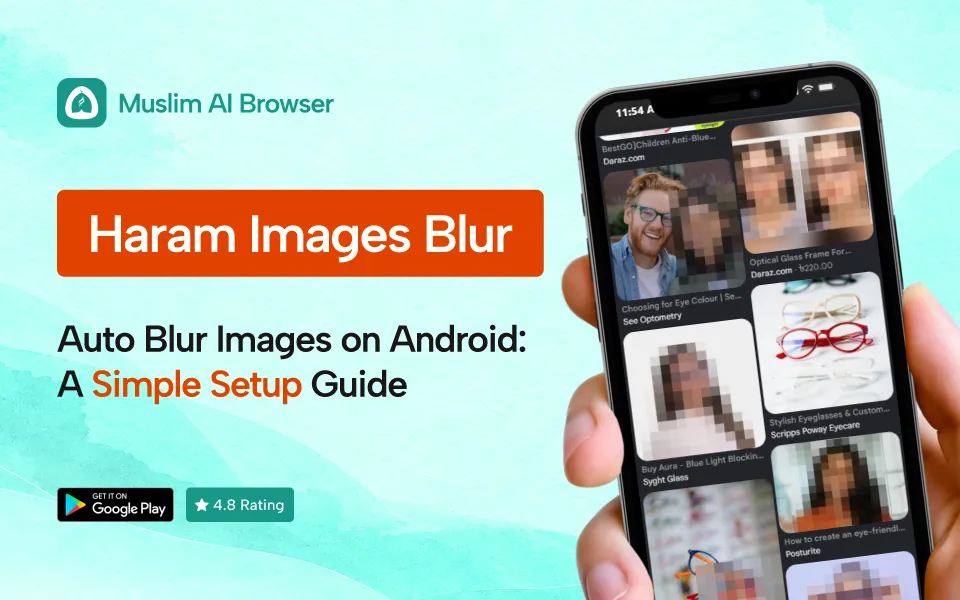
Want to auto blur images on Android without fiddling with settings every time? You are not alone, and it takes only a few minutes to set up.
We all scroll past things we never wanted to see, on a news site, a search result or a random ad.
This guide shows a calm, simple way to guard your eyes on your phone.
Quick answer: To auto blur images on Android, install Muslim AI Browser free from Google Play. Open it, check that the AI blur filter is on, then test it on a normal image-heavy page. Everything runs on your phone, so no images leave your device.
Why Auto Blur Images on Android at All?
Most of us do not go looking for bad content. It finds us, which is why so many people want to auto blur images on Android.
It sits in thumbnails, sidebar ads and "recommended" boxes. One careless tap and the image is already in your mind.
The problem with "just be careful"
Being careful is good. But your eyes react faster than your thumb.
Automatic image blur adds a pause. The picture stays blurred until you decide it is safe to look.
A value we share
Many Muslims see this as part of lowering the gaze. Allah says, in meaning: "Tell the believing men to lower their gaze and guard their private parts" (Surah An-Nur 24:30).
The next verse gives the same guidance to believing women (Surah An-Nur 24:31).
Scholars explain that lowering the gaze covers what we choose to look at, including screens. For personal rulings, please ask a trusted local scholar.[SR3]
Step-by-Step: Auto Blur Photos on Your Phone
Here is how to auto blur images on Android in four steps. No technical skill needed.
What You Need Before You Start
- The setup is light. Here is the short list:
- An Android phone running Android 7.0 or newer
- Access to the Google Play Store
- few minutes and a stable internet connection for the download
Not sure which Android version you have? Google explains how to check your Android version in a few taps.
There is no iPhone app right now. This guide is for Android only.
Step 1: Install from Google Play
Open the Play Store and search for Muslim AI Browser. Or go straight to the Muslim AI Browser listing on Google Play.
Tap Install and wait for the download to finish. The app is free, with no premium tier.
If Play Store downloads ever get stuck, Google has a help page on how to download apps to your Android device.
Step 2: Open the browser
Tap the app icon to open it. You may see a short welcome or intro screen.
Follow any prompts on screen. You do not need to create an account to start browsing.
Step 3: Check your blur settings
Open the browser settings and look for the content filter or AI blur options.
Make sure these are switched on:
- AI Haram Blur: blurs inappropriate images and videos as pages load.
- Safe Gaze: blurs images of the opposite gender, if you want that extra layer.
- Adult content filter: this one is on by default.
- Gambling site blocker: also on by default.
Safe Gaze is optional. Some people want it all the time, others only for certain sites.
Step 4: Test it on a real page
Now test it. Open a news site or an image search for something harmless, like "summer fashion" or "beach holiday."
Watch the images as they load. Anything the AI flags should appear blurred.
If nothing blurs on a page that clearly needs it, go back to Step 3. Check that the filter toggles are still on.
How Automatic Image Blur Works
You do not need to know the tech to auto blur images on Android. But it helps to know what is happening.
It runs on your phone
The AI model runs 100% on your device. Images are checked locally as the page loads.
No pictures are sent to a server. That also means the blur works offline.
Your data stays with you
Your history, bookmarks and searches stay on your phone. There is no tracking and no cloud upload.
This matters. A tool that protects your eyes should not watch you in return.
Honest limits
AI blur is good, but it is not perfect. It can miss an image now and then.
It can also over-blur, like a harmless photo of a sofa or a food plate. Treat it as a strong helper, not a guarantee.
Browser Blur vs Overlay Apps
There are two main ways to blur images on phone screens. Here is a fair comparison.
| In-browser blur (Muslim AI Browser) | Overlay app (for example HaramBlur on Android) |
Where it works | Inside the browser | On top of other apps via accessibility service |
Setup | Install and browse | Needs accessibility permission |
Processing | On-device | Varies by app |
Social media | Facebook, Instagram, YouTube inside the browser with filters | Works over the native apps |
Overlay apps cover more apps, which is useful. Some Play Store reviews of HaramBlur mention slowness and over-blurring, though experience varies by phone.
If you want to learn more about the idea behind these tools, read our main guide on haram blur.
Using social media inside the browser
You can open Facebook, Instagram and YouTube in the browser and get a near real-app experience. Filters stay on while you scroll.[SR9]
The browser can block Reels, YouTube Shorts, sponsored posts, suggested posts and People You May Know. Blocked slots show short Islamic quotes instead.
Extra Settings Worth a Look
Once you auto blur images on Android, a few other features are worth a minute of your time.
• Masjid Mode: switch it on before you enter the mosque. The browser shows text only, no images or videos.[SR10]
• Optional ad blocker: removes many web ads, which also cuts a lot of visual noise.
• Malicious site protection: warns you away from harmful sites.
Setting this up for your family
Many parents set this up on a child's phone first. It is light, fast and easy on the battery.
If that is your goal, our guide to a safe browser for kids on Android covers family setup in more detail.
On a laptop too?
Your phone is only one screen. On desktop, you can use the Porda AI extension on Chrome and Edge.
See our full haram blur extension guide for the desktop steps.
Troubleshooting: When the Blur Does Not Work
Trying to auto blur images on Android and something seems off? Most problems have a simple fix, so try these in order.
1. Filters are off: open settings and confirm the blur options are on.
2. Old app version: update the app from Google Play.
3. Page loaded before the setting changed: refresh the page.
4. Using another browser by habit: set Muslim AI Browser as your default browser in Android settings.[SR11]
5. Too much blur: some over-blurring is normal. If the app lets you reveal an image, only do so when you judge it safe.[SR12]
Remember that links opened from other apps may open in your old browser. Setting the default browser fixes most of this.
FAQ
Can I auto blur images on Android for free?
Yes. Muslim AI Browser is free on Google Play with no premium tier.
Does automatic image blur send my photos to a server?
No. The AI runs on your phone, so images never leave your device.
Does the blur work offline?
Yes. Because the AI runs on the device, it works without an internet connection for pages already loaded.
Will it blur images in other apps like WhatsApp?
No. The blur works inside the browser, including Facebook, Instagram, and YouTube opened in it.
Is there an iPhone version?
Not at the moment. The app is Android only, on Android 7.0 and newer.
Is AI blur 100% accurate?
No tool is. It can miss some images or blur harmless ones, so stay mindful as well.
A Small Step That Helps Every Day
Guarding the eyes is a daily effort for all of us. We slip, we try again, and small tools can make that effort a little lighter.
If you want a simple start, download Muslim AI Browser for free from Google Play, switch on the blur, and test it today. May Allah make it easy for all of us.